How to migrate from YITH WooCommerce Catalog Mode to Shelfwright
YITH WooCommerce Catalog Mode’s free version removes Add to cart for everyone, but hiding prices, guest-only mode, per-category rules and custom buttons are Premium. Shelfwright does all four for free and can import your YITH settings. Here is the safe way to switch.
1. Back up first
Take a database backup, or use a staging copy of your store. The import doesn’t change YITH’s settings, but a backup is good practice before any plugin change.
2. Install Shelfwright
In WordPress go to Plugins → Add New, search for “Shelfwright” and install and activate it. WooCommerce must be active. Keep YITH active for now.
3. Read the dry run
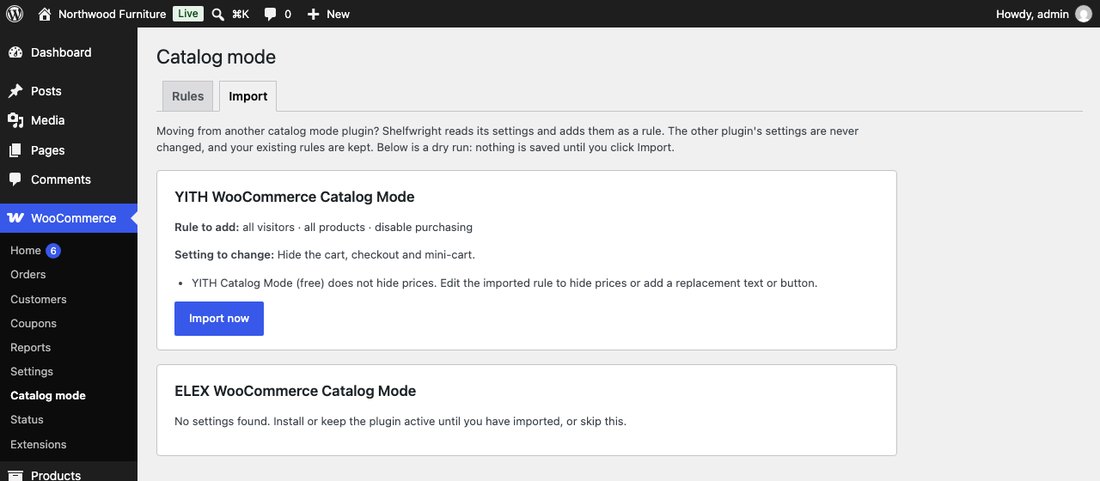
Open WooCommerce → Catalog mode and switch to the Import tab. Shelfwright reads YITH’s settings and shows a dry run: the rule it will add, any setting it will change and notes on anything it can’t copy exactly. Nothing is saved yet.
4. Import
Click Import now. Shelfwright adds one rule named “Imported from YITH Catalog Mode”. Your existing Shelfwright rules are kept, and running the import again does nothing once the rule exists.
On a server you can do the same with WP-CLI:
wp shelfwright import yith --dry-run
wp shelfwright import yith
5. Hide prices, if you want to
YITH’s free version can’t hide prices, so the imported rule only disables purchasing. To hide prices too, open the rule on the Rules tab, tick Hide prices and add a text such as “Log in to see prices”, plus a button if you like. To limit the rule to guests or to some categories, change Who or Products.
6. Check as a guest, then deactivate YITH
Store managers always see the normal store, so open your shop in a private window to see it as a guest. When it looks right, deactivate YITH WooCommerce Catalog Mode and clear your page cache. You can delete YITH once you’re happy.
What is imported
| YITH setting | In Shelfwright |
|---|---|
| Disable shop | Adds a rule that disables purchasing for all products and switches on “Hide the cart, checkout and mini-cart”. |
| Hide Add to cart | Adds a rule that disables purchasing for all products. If YITH hid the button on the shop page only or the product page only, the dry run says so: Shelfwright blocks purchasing on every page for that rule. |
| Apply to all users or logged-out users (Premium) | The rule targets everyone or guests to match. |
| Catalog mode for administrators | Not copied. Store managers see the normal store in Shelfwright; the dry run tells you if YITH applied to admins, and you can turn off “Store managers see the normal store”. |
| Hide variations | Noted in the dry run. Shelfwright disables purchasing for every product type the rule covers. |
What isn’t imported
- YITH Premium options other than “apply to logged-out users”: hidden prices, exclusion lists and selected products, and custom buttons. Shelfwright Pro can recreate them as rules: specific products with include or exclude, and the button builder for button style, icon and per-product buttons.
- “Show Add to cart only for some products” (Premium): not imported. Create a category rule instead.
The importer never changes YITH’s data, so you can switch back at any time. Moving from ELEX WooCommerce Catalog Mode works the same way on the same tab, or with wp shelfwright import elex.
Questions? Email support@sellscope.app.